
How to create a Google Drive link?
In this blog I will show you how you can share a file on Google Drive by creating a link and how to secure this link with a password.
Creating a shareable link in Google Drive is actually quite easy. First, open your Google Drive and right-click on the file you'd like to share.
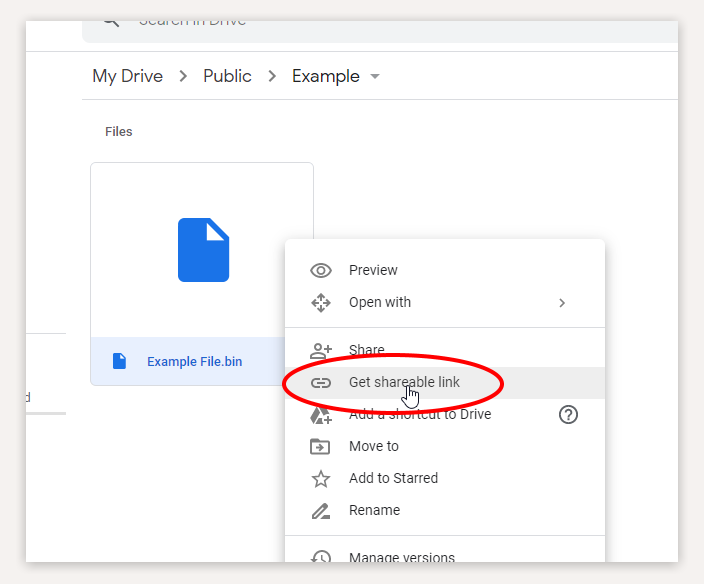
You will now see an option to 'Get shareable link'. Go ahead and click on it. Before you copy the link, check the permission settings.
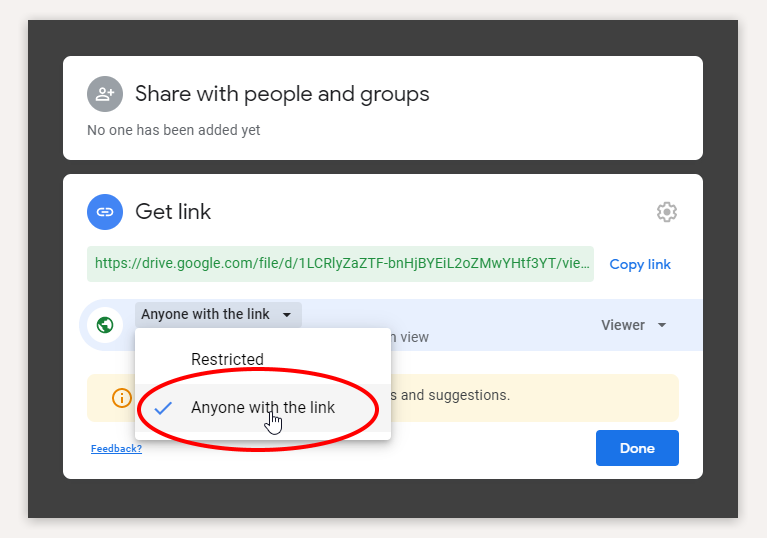
By default, anyone that has the link can access your file. You can choose whether these people can only view the file ('read only') or whether they can edit it. Once you are ready, just click on Copy Link and then on Done. You have now copied the shareable link to your clipboard.
So that was easy, right? But do you really want to share the file with anyone that has the link? How do you know who has access to the link and if the link is not forwarded to others? This is where Passdropit comes in play. With Passdropit you can select your Google Drive file, create a shareable link AND add a password to it. By doing so, only users that have the link and the password can get access to the file.
Step 1 is to Sign-up for a free Passdropit account. Once you have registered your account, sign in and click on Create New Link and then on Choose a File.

After you have chosen Google Drive, your drive will automatically open and you can select the file that you want to share. After you have selected your file, you will see the Passdropit URL and the randomly generated password. You can change the URL and the password if you like. Complete this step by clicking on Confirm and Save.

Success! Your Passdropit link has been saved. You can now manage it, share it, copy/paste the URL and Password :)
Do you want to receive a notification when someone accesses your file, or want the link to expire after a certain date? Or get analytics on where and how often your file was accessed? You will have to upgrade your free Passdropit account to a Passdropit Pro account for only $5/month.